
GAME WINDOW

NO GAME IN PROGRESS
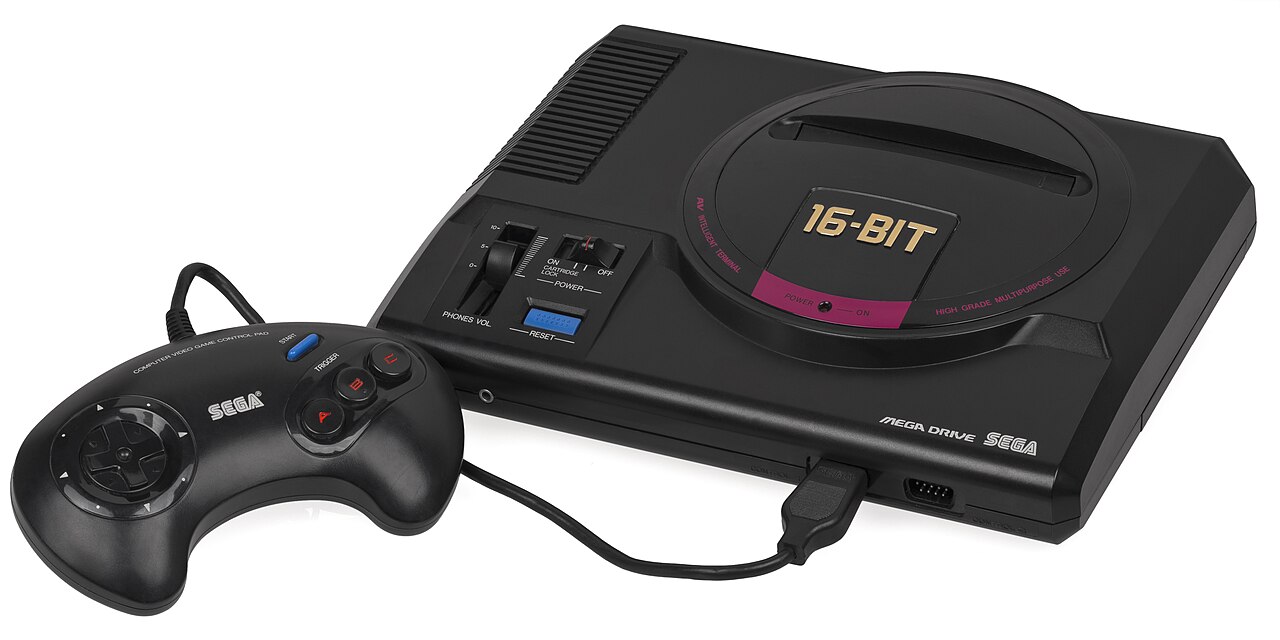
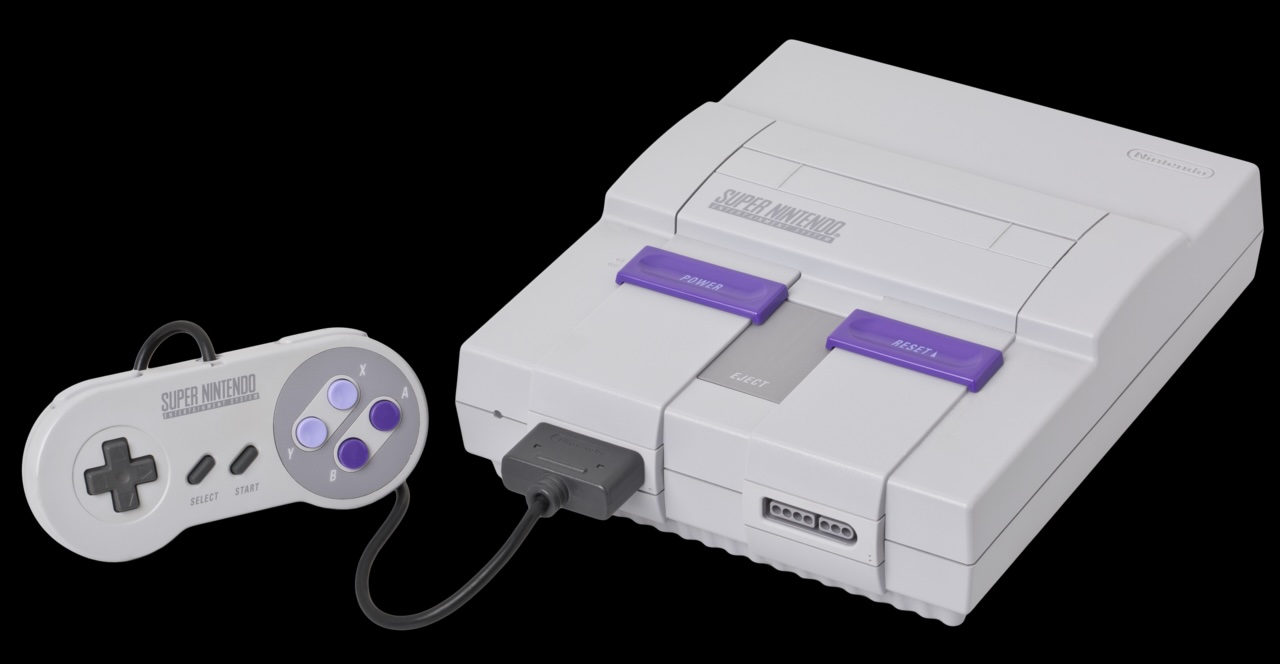
Sega GenesisSuper Nintendo

Choose your system and ROM,
then host online or play locally.

GENESIS

PLAYER’S MANUAL

HELP & HOW-TOS

Everything you need to get in the game. Open any topic below.

You can open Help before a game or during a session.

Play in 3 easy steps
  1. Choose your system and ROM. Pick Sega Genesis or Super Nintendo, then choose your ROM file from your computer. It is read in your browser and never uploaded.
  2. Choose how to play. For online play your room opens automatically: send your friend the three-character room code (or Copy link). To join, enter their code and choose Join. For a game on this computer choose Local match.
  3. Start. The game boots from the very beginning, exactly like a console. Use the game’s own menus to choose teams, one or two players, home or away and the rules. Online, the host chooses Start game and the guest chooses Ready to play.

Online, the host chooses whether to be Player 1 (home) or Player 2 (away); the guest takes the other controller port. Both players must load the same ROM file.

System & ROM

Systems: Sega Genesis and Super Nintendo. Each system needs its own ROM file. A loaded ROM is kept until you reload the page.

Any ROM: the site does not check which game or version your ROM is. Hacks and custom ROMs are fine.

Online: as soon as two players connect, both ROMs are compared by CRC32. If they differ, Start is blocked and both values are shown. SNES ROMs with or without a 512-byte copier header count as the same ROM.

Controllers, remapping & keyboard controls
  1. Connect your controller and press a button so the browser can detect it.
  2. Choose Set up controller in the ready check, or Controller below the game or in full screen. If prompted, choose the controller to map.
  3. Press each requested direction and button, including Start. Use Back to correct a step. When finished, test your buttons and choose Done.

You can remap in the lineup menu or mid-match without restarting. Layouts are saved in this browser for the controller and console. Start over remaps; Use standard layout removes your saved mapping. Private windows or blocked storage may keep a layout only for that visit.

Online: agree on an in-game pause before opening Controller. Your inputs are held neutral while mapping; the online game keeps running. Local games pause while the panel is open.

Keyboard · Genesis ’94 and ’95

Genesis keyboard controls
ActionPlayer 1 / onlinePlayer 2 · local
MoveArrow keysI K J L
Sega A / B / CA S DZ X C
StartEnterRight Shift

Keyboard · SNES ’94

SNES keyboard controls
ActionPlayer 1 / onlinePlayer 2 · local
MoveArrow keysI K J L
SNES A / BA SZ X
Y / X (goalie)Q WU O
L / RE RN M
StartEnterRight Shift

Click the game picture to return keyboard focus. Online players each use the Player 1 keyboard layout on their own device, even when playing Away.

Sound, full screen, pause & ending a game

Scanlines: choose Scanlines: off below the game or in full screen to turn on a subtle retro CRT effect. Choose it again to turn it off. It starts off each visit, works with all three games, and only changes your own picture.

Sound: choose Enable sound. Browsers need a click before they can play audio. If you see Retry sound, try again; the game can continue without audio.

Full screen: choose Full screen, press F with the game focused, or double-click the game. Press Esc to exit. Help, Controller and save-state buttons remain available in full screen. Browsers without native full screen use a page-filling view.

Pause: the local Pause button freezes the local game. Online, the button sends Start to the original game; agree with your opponent before pausing. Your controller’s Start also works in menus, during play, and between periods.

End game: stops the current game and returns to setup. Online, the host ends both games together; a guest can request it. Download a save state first if you want to continue later. Disconnect leaves the online room.

Save states

Use Save state any time a game is running to download a .state file, and Load state to go back to it. Keyboard: [ saves, ] loads. Works for Genesis and SNES.

  • Local: both buttons work during play. A state must be from the same system.
  • Online: either player can save. Only the host can load. The host’s state is sent to the guest, both games pause for a moment, load it and carry on together.
  • If the transfer cannot finish, nothing changes and the game continues. Use the same ROM that made the state.
Connection problems, flicker & browser help
  • Can’t join? Recheck the three-character code or use the host’s invite link. Wait for the opponent-connected message. If the room has closed, have the host create a new room.
  • Game won’t load? Make sure your ROM file is loaded and that you both use the same ROM. Check your network and any browser notice. Download available saves before refreshing. A desktop browser is recommended; if Safari or Edge fails, try an up-to-date Chrome browser and report the original error.
  • Lag or repeated disconnects? Keep the game tab visible, use a wired connection where possible, close heavy downloads, and try without a VPN. Brief tab interruptions allow up to 30 seconds to return. Distance and network quality still affect play.
  • Black flashes or flicker? Note the game, browser, device, period, and what was on screen. Copy the connection report and share it with the site team. Try the same game in local mode to see whether it also happens without an opponent.
  • Disconnected mid-game? Follow Save & recover above. Loading a state requires returning to setup and both players agreeing on the same save.

What the connection numbers mean

Round trip is the time to the opponent and back. Jitter is how much that timing varies. Rollback shows predicted frames; the game can correct earlier predictions as inputs arrive. Input delay is a small frame buffer selected from the connection test. Transport describes the connection path.

Choose Copy connection report beneath the game when available. Send it to the site team with your browser/device details and the problem you saw. Online play remains experimental; the diagnostics cannot promise a lag-free match.

Download any save states you want to keep before closing or refreshing the arena.

Offline · ready for setup

PLAY & CONTROLS100%
SAVE STATES
MATCH & ROOM

ROUND TRIP
—ms
JITTER
—ms
ROLLBACK
—frames
INPUT DELAY
—frames
STABILITY
—
TRANSPORT
Not connected

Distance still matters. Keep the game tab visible during online play. Brief interruptions get up to 30 seconds to return.

PRE-GAME

3 EASY STEPS

LET’S PLAY
1Choose your system and ROM

GAME ROM

NEEDED

Choose your ROM

Pick the ROM file for this game from your computer. It never leaves your device, and any ROM is accepted.

Online, both players need to load the same ROM file. The match will not start if the two ROMs differ.

2Choose how to play

Host online and share your three-character room code, join a friend’s code below, or play a local match on this computer.

OR JOIN A FRIEND

Enter the three characters your host sent you.

3

Get ready

Choose your system and ROM above.

CHOOSE ROM

Choose your system and ROM to begin. Online play is experimental.

Controller & keyboard guideOpen guide

Player one

↑ ↓ ← → Move
A S D Sega A / B / C
SNES: A A · S B · Q Y · W X (goalie)
E L · R R
Enter Start / pause

Player two · local

I K J L Move
Z X C Sega A / B / C
SNES: Z A · X B · U Y · O X (goalie)
N L · M R
Right Shift Start / pause

Prefer a controller?

Connect a gamepad and press a button. If the buttons feel wrong (common with 8BitDo and other Genesis-style pads), choose Controller at any time, including menus or mid-match and press each button once. Your layout is saved in this browser. For online games, agree on an in-game pause before mapping. Start works in the lineup, during play, and between periods. Press F or double-click the game for full screen. Desktop browser recommended.

03 / PROVE IT BEFORE PUCK DROP

PUT THE NETWORK
THROUGH ITS PACES.

Simulate delay, jitter, and packet loss to check the synchronization logic. A simulation is a first check; real Canada–Europe matches are still required.

Controller setup

CONTROLLER No controller detected

Press any button on your controller so the browser can see it.

    Your layout is saved in this browser for this controller. Keyboard controls are not affected.